
Background results and proactive delivery
You do not need to remain in one conversation while work finishes. NextClaw returns background results through either a lightweight notification or the inbox, depending on whether the result needs to persist.
Two ways results reach you
Conversation completion notifications
When an AI reply finishes in another conversation, a clickable notification appears in the upper-right corner. It shows the conversation title and a cleaned plain-text preview instead of raw Markdown. Select it to return to the completed conversation.
To keep working on the current page, select the notification's Chat in a floating window icon beside the dismiss button on the right; hover over an icon to see its label. The floating conversation loads that chat's history and lets you ask follow-up questions, read streaming replies, and inspect tool results while preserving your main conversation and draft.
You can also choose More actions → Chat in a floating window from the conversation list, the current conversation header, or the workspace's child conversation list. Any existing conversation can open this way without waiting for a notification. If the main view and floating window show the same conversation, they share its draft and receive live message updates.
The shared title bar supports docking, collapsing/expanding, maximizing/restoring size, opening in the main area, and closing. Floating windows can be dragged and resized. Minimizing preserves your input; closing does not stop a running reply. One floating conversation opens at a time, so expanding another notification switches its target. Refreshing closes the window while keeping history in the original conversation. An expanded floating conversation suppresses duplicate notifications; minimizing restores them.
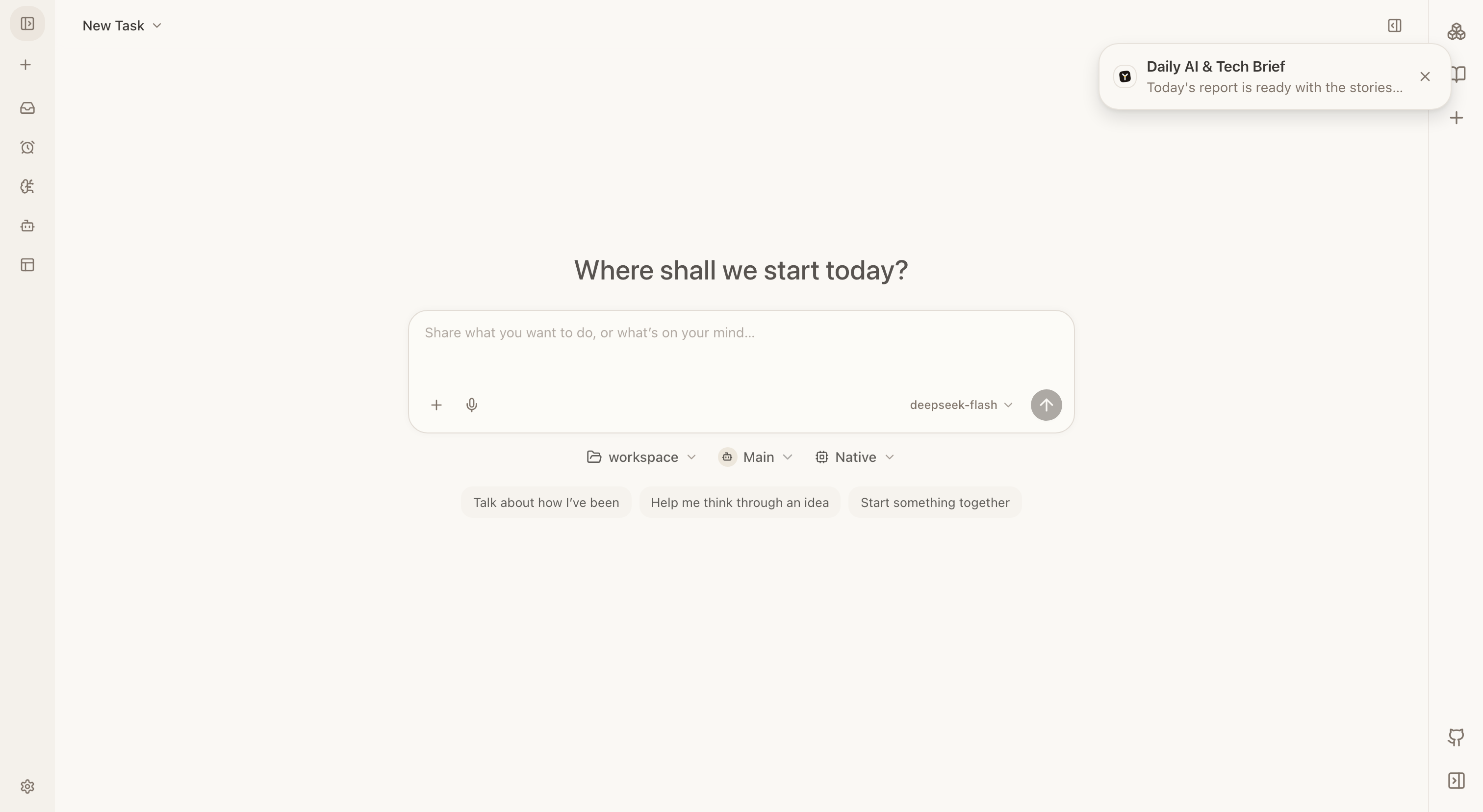
This notification is useful for “the reply I was waiting for is ready.” The conversation already on screen does not trigger a redundant notification, and the notification is not a permanent record.
Continue chatting in the right sidebar
Choose More actions → Chat in right sidebar on an existing conversation, or Dock to sidebar in the floating window. The tab menu can open that conversation alone in a floating window; Float view group moves the entire tab group. Moving a conversation keeps its identity and shared draft; different conversations keep separate drafts. Multiple conversation tabs can coexist with documents and other sidebar tabs.
On mobile, conversation rows show a title, recent message, time and unread indicator. Agent avatars take priority; ordinary conversations use title initials and a stable color for recognition. Open search from the header button and switch time/project views from the title menu. Each row has a touch-accessible actions button. In narrow chat containers, message footers retain the time and actions; full model and usage information remains available through the message's more-actions menu.
Proactive inbox deliveries
When scheduled work, a background Agent, or a long-running monitor produces a report worth keeping, AI can deliver Markdown or static HTML to the inbox. The delivery persists even when NextClaw was not open and is presented the next time you return.
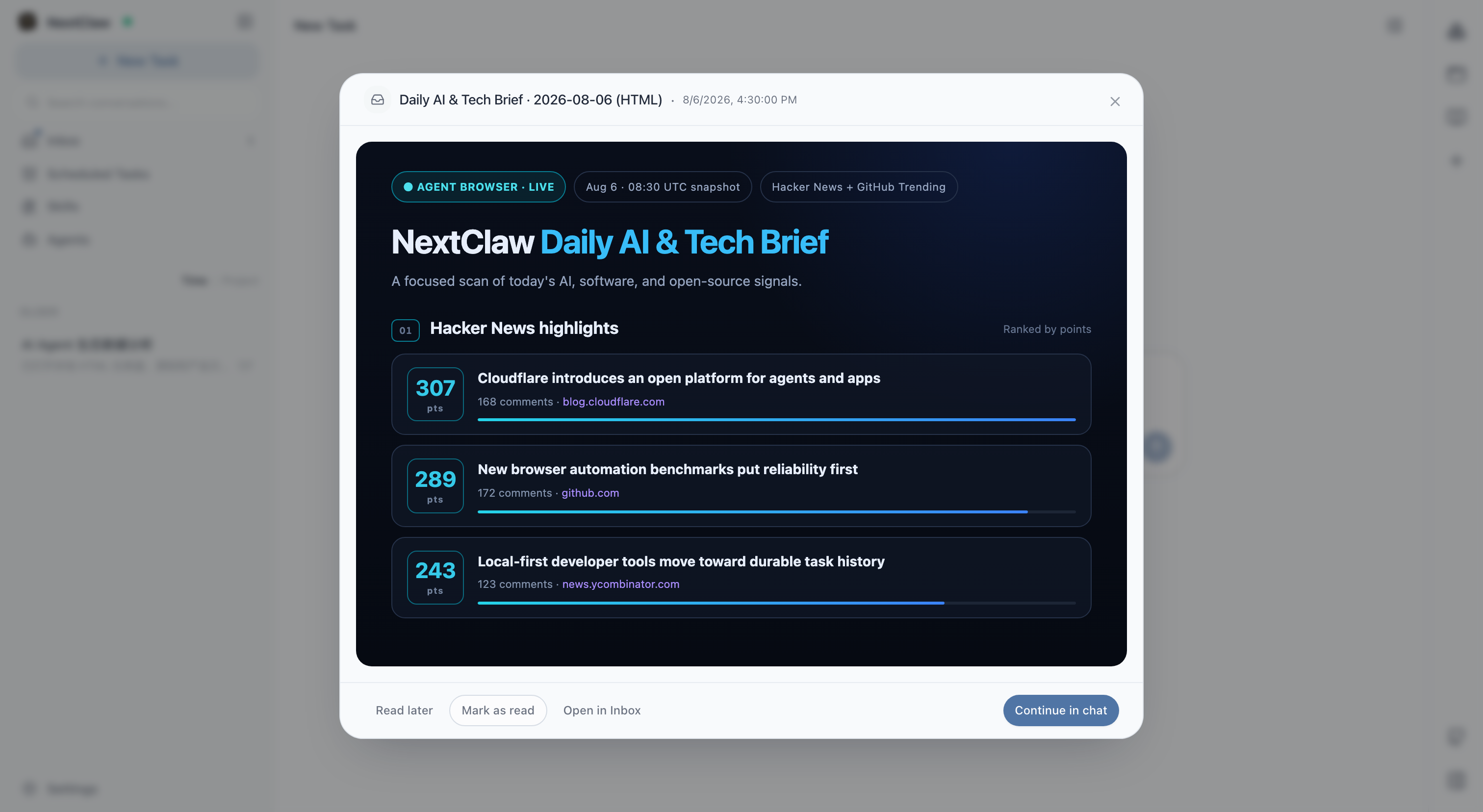
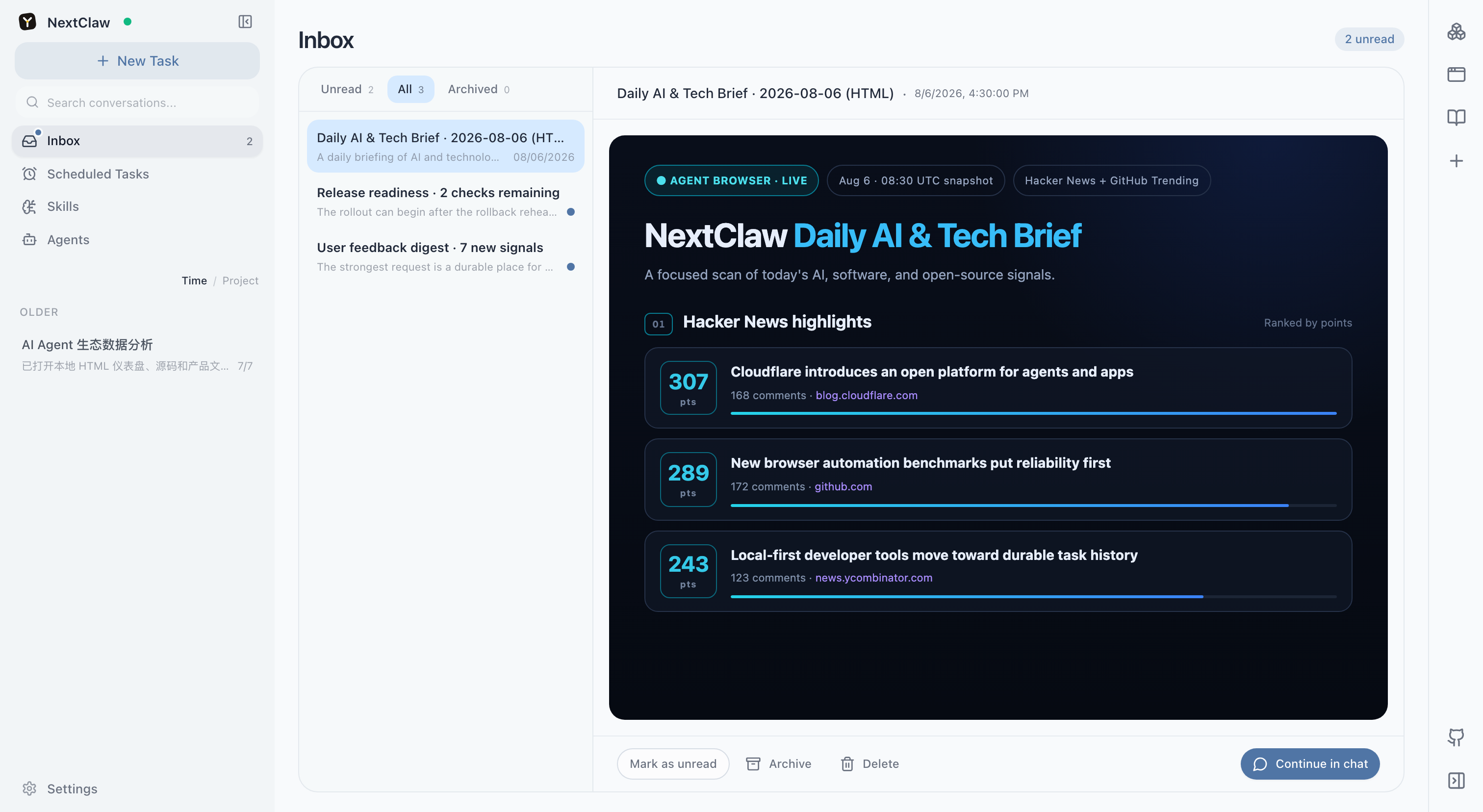
The inbox is suited to weekly reports, research, recommendations, monitoring findings, and documents that need follow-up. You can mark items read or unread, archive or delete them, and continue the conversation from the report.
Which one should you use?
| Situation | What NextClaw does |
|---|---|
| You switch conversations while waiting for a reply | Shows a completion notification that returns to the original conversation |
| A scheduled task creates a daily report, weekly report, or research result | Delivers it to the inbox with persistent unread state |
| A background monitor finds a change worth reviewing | Delivers it to the inbox for later review or follow-up |
| The result is a normal reply in the conversation already on screen | Keeps it in that conversation without another notification |
Unread and presentation behavior
- A new delivery opens one reader when the interface is visible. Multiple items share the same reader instead of stacking dialogs.
- Closing the reader or choosing “Read later” keeps the item unread, but the same item does not repeatedly open itself.
- Opening the item intentionally, marking it read, or continuing the conversation moves it to the read state.
- The inbox defaults to Unread when actionable unread items exist. Otherwise it defaults to All, so existing history is not hidden behind an empty list.
HTML report boundaries
The inbox supports self-contained static HTML reports. Inline styles render normally, while scripts, forms, popups, remote resources, and external network requests remain isolated. Interactive pages that require JavaScript or external services are better delivered through a trusted file preview or a Panel App.
Continue working from a result
As soon as a user message is saved, the model selected for that turn starts generating a concise title from the available conversation while the main reply runs in parallel. Greetings are named by interaction type, such as “Casual greeting”; failed generation keeps the current title without affecting the reply. Manually renamed conversations are preserved. Older conversations still named after their first message can improve after their next user message; opening the list does not rename them in bulk.
The conversation list's plus button opens the new-conversation screen directly. Choose a different runtime below the input area on that screen.
Select “Continue Chat” to create or reuse a linked conversation. NextClaw supplies the delivery to AI as context, so you can question a conclusion, request a revised report, or turn a recommendation into the next task without pasting the entire document again.
Related: Inspect task results · Scheduled tasks · Panel Apps