
Session workspace
Collapsible Markdown sections
Chat and Markdown file previews support GitHub-style collapsible sections with smooth transitions. Add open to expand initially; nesting is supported. Summaries display plain text, and bodies support lists, code and math. Keep blank lines around the body:
<details>
<summary>Read more</summary>

Supporting information goes here.

</details>
Scripts, event attributes and unsafe HTML are filtered out.
Document properties
Document properties expand and collapse with a smooth transition that respects the system's reduced-motion preference.
YAML front matter enclosed by --- at the start of a Markdown file appears in a compact, collapsible Document properties section with reduced top and field spacing. Properties stay out of the document outline. Nested values retain their YAML representation; invalid metadata remains readable as source text. Switch to source view to inspect the complete file. Complete Markdown documents in chat use the same presentation.
The session workspace keeps the current project's files and follow-up work beside the conversation. For local documents, codebases, and generated apps, this is often where the real deliverable lives.
Project files
After you choose a working directory, the project Explorer stays beside the file preview. Open several files in sequence and each one gets its own tab, without switching between a separate directory page and preview page.
The Explorer follows familiar code-editor conventions:
- Create a file or folder, refresh, or collapse the tree from the toolbar.
- Right-click a folder or empty space to create, upload, paste, or run actions at that location.
- Rename or delete files and folders, and copy their paths. Deletion always asks for confirmation.
- Download files generated by an agent or add them directly to the current message.
- Drag the divider to resize the Explorer. NextClaw remembers the width and only uses an overlay when space is genuinely tight.
Previews cover Markdown, code, HTML, common documents, spreadsheets, and presentations. In a rendered Markdown file, use the outline button at the right of the path bar to review its heading structure and jump directly to a section. HTML can switch between source and rendered output, while code changes can be reviewed as diffs.
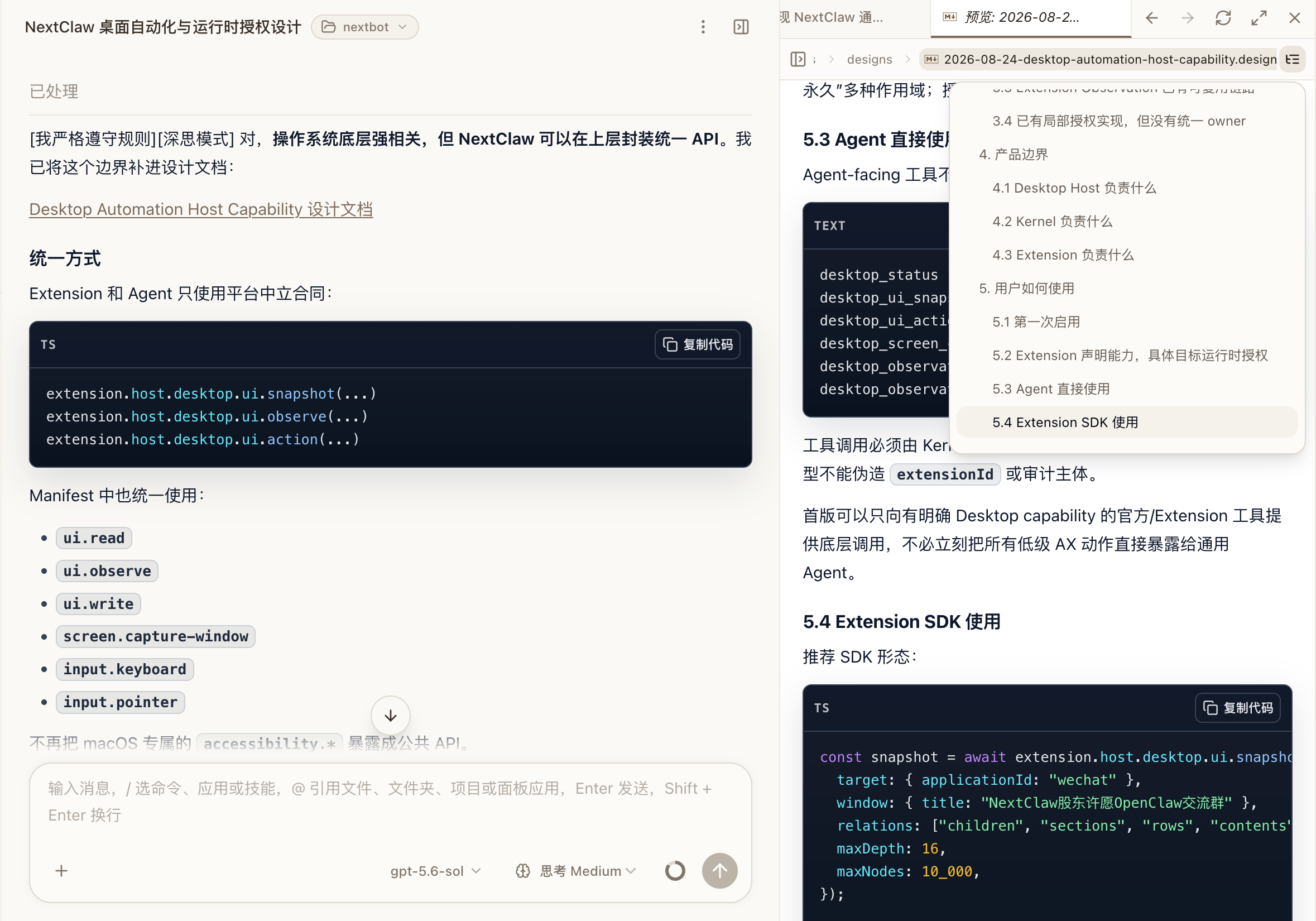
Preview content, loading messages, and the path bar follow the current theme. The compact path bar highlights the current file with a subtle divider above the content, while a clearer boundary separates the conversation from the right workspace.
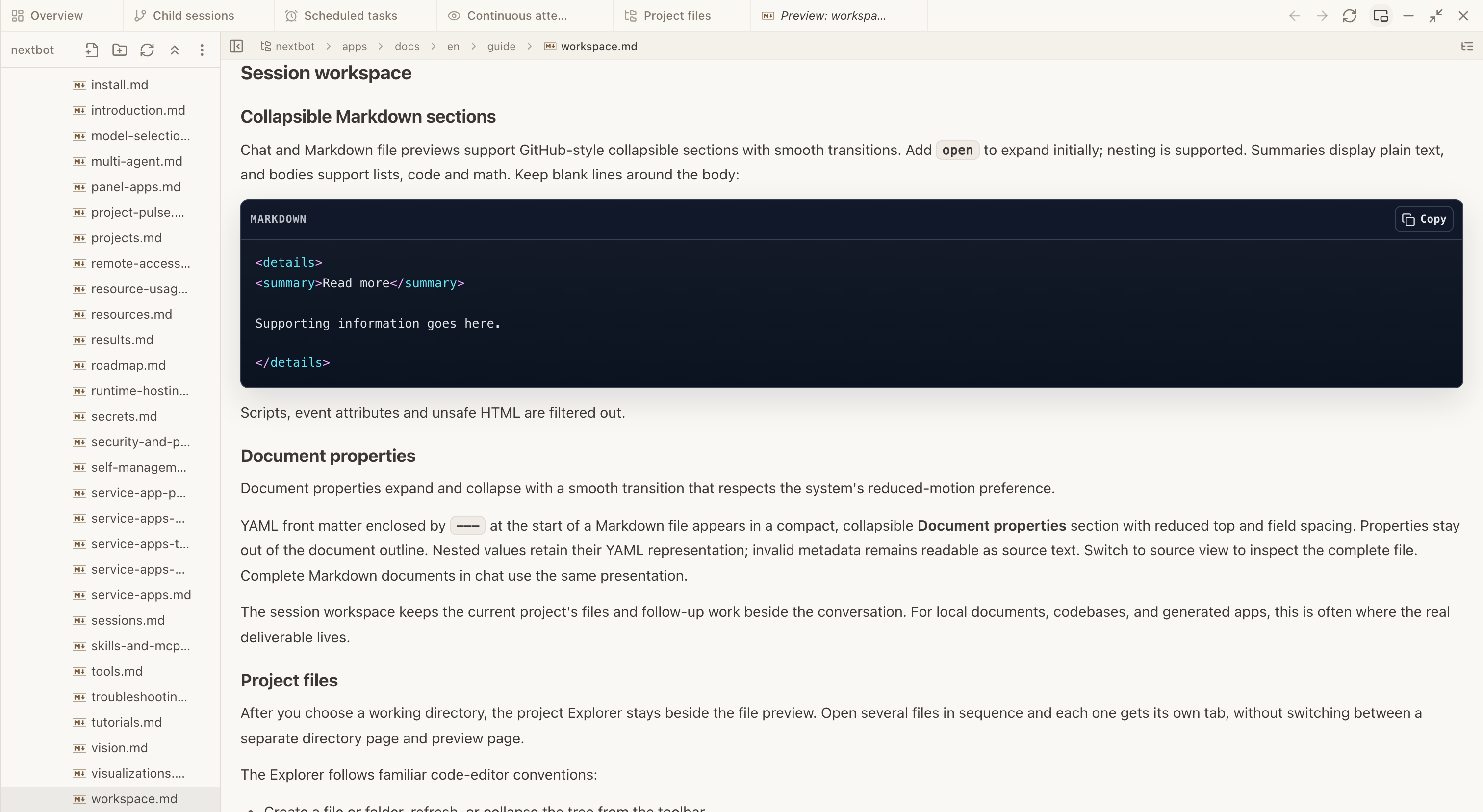
Open files
Open files stay available while you move between the conversation, source, and output. Your reading position is kept when you return to a file, switch between Markdown source and preview, or view another file first. Reopen the real file after the agent changes it. On a narrow screen, use the Explorer button in the preview header to reveal the tree temporarily and continue in the same preview context after choosing another file.
To use a file in the current message, choose Add to chat from its action menu. In a text file, you can select a passage first and add only that excerpt. Files, folders, and selected text appear as visible references in the composer. See Tasks and sessions for the full workflow.
Subtasks
Split complex work into subtasks with explicit inputs and deliverables. A research task might separate source collection, data cleanup, and summary writing, while the parent session performs the final review.
Session schedules
Scheduled jobs connected to the current work can also appear in the workspace. Recheck their working directory, prompt, and destination whenever the project configuration changes.
Good defaults
- Use the narrowest useful project directory.
- Ask for a change plan before bulk edits.
- Keep source files and write outputs to a separate directory.
- Verify the real artifact, not just the chat summary.
Related: Tasks and sessions, Inspect task results, and Panel Apps.
View layout and navigation
On mobile
The bottom navigation opens conversations, inbox, skills, agents, settings, and apps. Open the view menu above the conversation list to switch to projects or open scheduled tasks. Project details opened from a project group return to the originating conversation page, including after switching detail tabs.
Wide composers show the current model and thinking level. On phones and narrow conversation panels, compact icons open the current options for viewing and switching. Copy, edit, and more actions below messages stay closely spaced. On mobile, the text area starts at one line, grows with your message, and scrolls internally for longer drafts. Settings are grouped by purpose, and long forms and detail dialogs scroll within the window. Mobile previews use a compact title bar: tap the title to switch tabs, navigate back or forward, and access app actions. Hide a view and reopen it from its original entry to continue browsing.
Mobile inbox details use one toolbar with back, title, Continue chatting, and More at the far right, leaving the remaining space for the report. On desktop, Continue chatting remains at the bottom. Read status, archive, and delete actions are in the More menu.
Reports that open automatically fill the mobile screen, with compact header and footer controls around an independently scrolling body. Read later, mark as read, Inbox, and Continue retain visible text labels.
Continue chatting returns to the conversation that produced the report and inserts an @ reference into its composer, preserving the existing draft without sending it. A new conversation opens only when the report has no source conversation or that conversation has been deleted.
Model and thinking menus, workspace tabs, and file breadcrumbs use compact dimensions. Once message processing ends, the summary shows Processed and the recorded duration. Expand it to inspect individual tool results or errors.
The session workspace uses the same view controls as the global browser: float, collapse, maximize, and restore without losing tabs or navigation history. Hide view group preserves the workspace for reopening.
Choose Move to global sidebar from a file tab menu to keep its source conversation, working directory, and diff preview while using it across pages. Switching the main conversation does not reinterpret its relative path. Child conversation tabs can also move to the global sidebar or a separate floating window. Other conversation-bound tools move with the workspace group.