
Panel Apps
A Panel App is a lightweight local application that runs in NextClaw's right side. Dashboards, forms, calculators, data browsers, and temporary workbenches can remain interactive instead of ending as a screenshot or static response.
When to use one
- A data report needs filters and metric switching.
- A repeated calculation belongs in a form or calculator.
- Local files need a small persistent browser.
- Generated HTML should stay usable beside the task.
Create a Panel App
Describe the purpose, data, and interactions:
Turn the current sales analysis into a local Panel App. Add month and product-line filters, and show revenue, margin, and a trend chart. Read the existing analysis-output data without modifying the source CSV files.
The agent can create a .panel.html file or a manifest-backed app and open it for review. Verify the real data, interactions, and narrow-screen layout before keeping it.
App list and references
The app list, retained data, and app marketplace use compact icon and text placeholders while loading. They follow the current theme and respect your system's reduced motion preference, then give way to the loaded content.
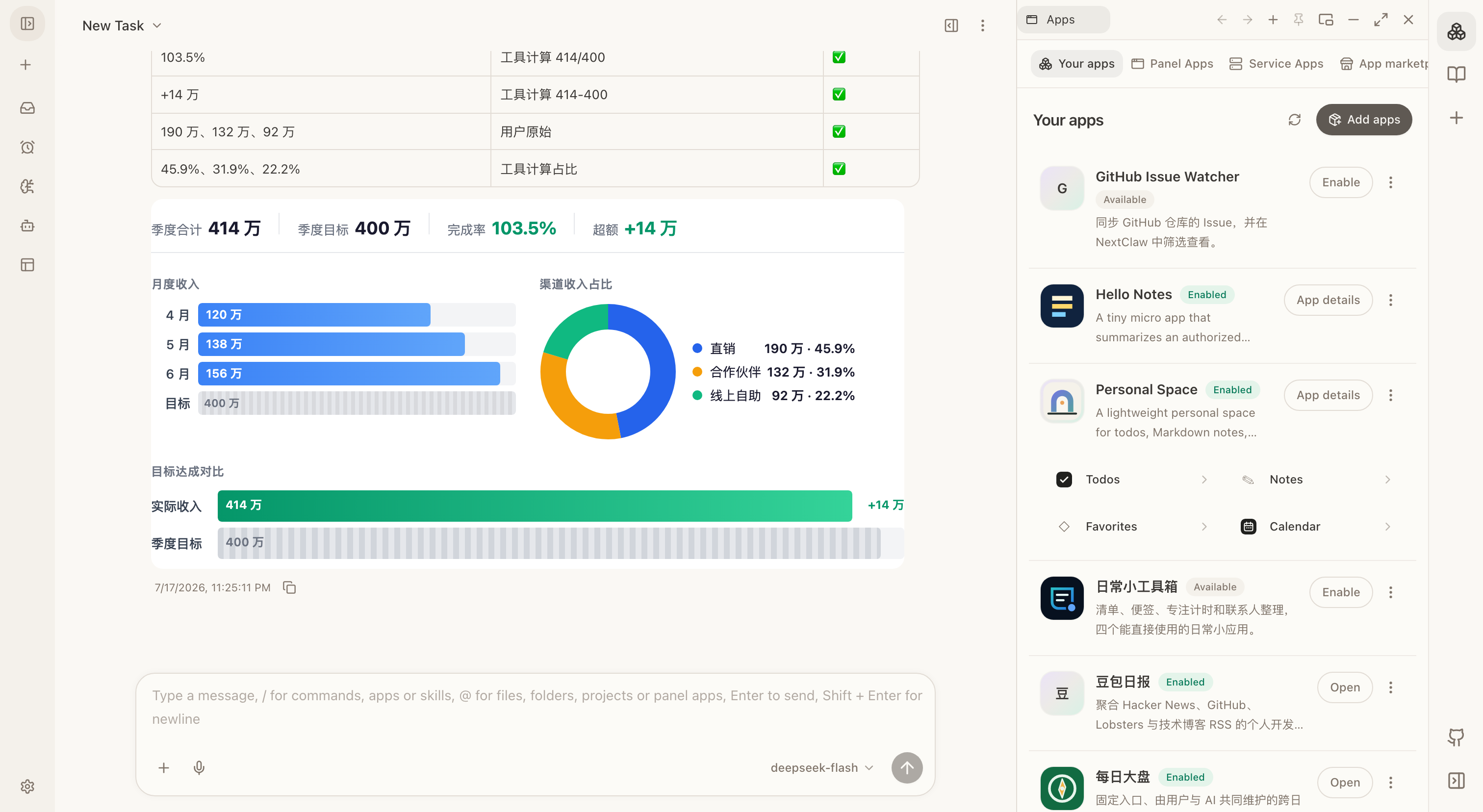
The Apps page presents installed apps in a compact list. Enabled apps with one panel offer an Open action; apps with several panels expose their individual entries. Select an app name or App details in its menu to inspect its version and data location or manage file and folder access. Disable, update, and uninstall actions live in the same menu.
Use Add apps to switch to the App marketplace tab. Search, browse details, and install there; the top-right Install from a source action accepts a trusted file path, directory, or app ID. Installation progress and failures remain visible on the app.
Manage existing Panel Apps from the app list and reference one from the session composer when asking for changes.
Use a Panel App's More Actions menu to open it on its own. NextClaw Desktop opens the app in your default browser, while the web app opens it in a new tab. The standalone page only shows the app, but it remains connected to the current NextClaw instance, so existing approvals, Service Actions, and agent calls keep working. A local standalone page stops working when its NextClaw instance stops.
Service Apps
When a Panel App needs a local runtime or controlled action, pair it with a Service App. Review every exposed action and permission, and grant only what the app needs.
The Service Apps page lists every Service Action. Use the grant control beside an action to select an agent; that agent can then discover and call the same action as a tool. Grants can be revoked at any time, and ungranted agents do not see the tool.
See Service Apps to connect a Service, approve a Panel call, or grant an Action to an Agent.
App data and uninstall
NextClaw keeps installable code separate from mutable App data. Updates replace code while preserving the managed App instance. Uninstalling an App or removing a workspace Service App also keeps that instance by default, so a later reinstall can continue with the same data.
The removal dialog offers two explicit choices:
- Keep data removes the App and keeps its managed instance.
- Delete app and data removes both after destructive confirmation.
Before confirming, NextClaw shows the exact managed path and storage used by data, config, state, cache, temporary files, and logs. Retained instances remain visible in the Apps page and can be deleted separately later. Files or folders that you granted to an App outside its managed instance are never deleted by either flow.
For CLI inspection and cleanup, use the running NextClaw host:
nextclaw app data list --json
nextclaw app data delete <data-id> --confirm <app-id> --json
The delete command accepts only retained data. Copy the opaque data id from the latest list output and confirm the exact App id; do not delete the storage directory manually.
Related: Service Apps
Browse the app marketplace
Open the App marketplace tab at the end of the Apps navigation, or choose Add apps in Your apps. Search and filter apps, read details, and return without losing your search or list position. Installation progress and failures appear on the app; View installed takes you to its library entry to open or configure it. Use Install from a source at the top right for a trusted path, directory, or app ID. Panels narrower than 576px use compact rows with an icon, short description, and action. Wider panels show cover cards in two or three columns.