
Doc Browser
Conversation and resource links
Use Retry when a resource fails to load. System object resolution and content reads have time limits, so connection failures end with an error instead of indefinite loading.
Select text in a system object or file preview and choose Add to chat to place the excerpt and its source in the current composer. From other pages, this opens a new chat draft. Adding a reference does not send a message.
Resource links open the object itself. Agents show identity, configuration, chat and edit actions; scheduled tasks show settings, the latest run and task controls. Management lists and chat links share these detail views. Projects open their workspace, work items use the same editor, Panel apps run directly, service apps and MCP connections show their management views, and inbox deliveries show their original content. Skills display the actual SKILL.md. Main, sidebar and floating placement share the same content. References supplied to AI still use object snapshots.
Conversation links use readable session IDs: nextclaw://sessions/<sessionID>. Ordinary IDs no longer use Base64; special characters such as spaces and slashes use standard URL escaping. The address bar also uses /chat/<sessionID>. Existing sid_... addresses and historical conversation resource links remain readable.
Conversation list, history, search, and creation tools return resourceUri. AI replies should reuse it verbatim instead of guessing a resource type from a tool name. Clicking a conversation reuses an existing view when available, otherwise opening its conversation page.
Other resources keep their own entry points: catalog-supplied nextclaw://objects/... for system objects, nextclaw://panel-app/... for interactive apps, paths or file resource URIs for files, and documentation URLs or nextclaw://docs/... for documentation. Document query parameters and section anchors are preserved. Unknown resource types are not guessed into another page.
Doc Browser is the global browsing area in NextClaw's right dock. Keep websites, documentation, and multiple tabs open while you continue working in the main task. The browser can be docked or floated.
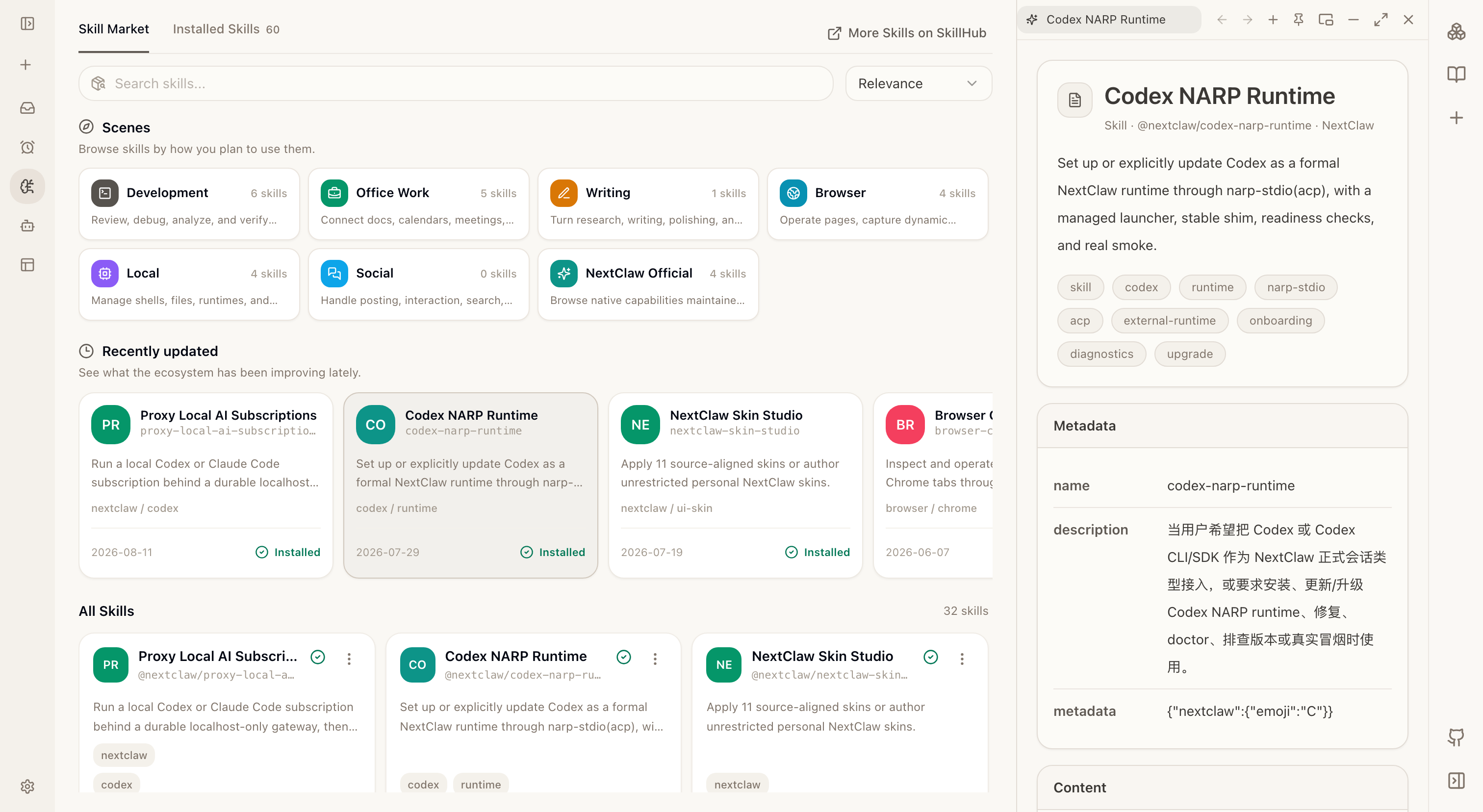
Doc Browser versus session workspace
- Session workspace focuses on the current task's local files, results, subtasks, and schedules.
- Doc Browser persists across product pages for websites, documentation, GitHub, and other references.
Use it to read a Skill or MCP guide while installing it, compare source pages during research, inspect a repository, or keep several references available while navigating NextClaw.
Opening a page in Doc Browser does not automatically send it to a model or let an agent control it. That depends on the tools and instructions used by the current task.
Consistent view controls
The global browser, session workspace, and floating conversation share window controls:
- Float view group / Dock to sidebar moves the entire tab group, keeping its content and navigation history.
- Collapse view / Expand view keeps a labeled restore bar without closing tabs or stopping tasks.
- Maximize / Restore size fills the application area temporarily, then restores the previous location and size.
- Close tab closes one tab; Hide view group keeps its tabs for reopening from the original entry.
- Pinning a shortcut is separate from docking a window. The right shortcut rail stores independently reconstructable entries; snapshot-backed file previews can be pinned to left Pages with their required context.
Drag empty title-bar space to move a floating window and its edges or corners to resize it. Double-click empty title-bar space to maximize or restore. Focus the sidebar divider and use arrow keys or Home/End to resize it. Escape restores a maximized window first, then collapses a floating window. Narrow screens use a full-screen layout.
Navigation and memory
Back and forward affect only their view group, not the main conversation route. Opening new content after going back starts a new history branch. Docking, floating, collapsing, and maximizing do not recreate the current content instance.
Placement and floating geometry survive reloads and are constrained to the current screen. Supported files, conversations, and bridged pages remember reading positions by resource and page URL; they restore after reopening or reloading and yield when you scroll yourself. Restored conversation reading is not pulled to the bottom by incoming content. Returning to the bottom resumes following new messages.
Cross-origin websites restore internal scrolling or application state only when they support the bridge. NextClaw does not bypass browser security to inspect arbitrary pages.
Pages, resource links, and shared actions
The left Pages section can pin apps, conversations, file previews, and ordinary product pages. Existing app pin preferences are preserved. Page and tab menus share applicable opening locations, left pinning, Add to chat, and Copy resource link. Content-specific actions, such as source/rendered file views, remain available.
A resource link identifies content, not a temporary window. A normal Markdown link can point to an installed Panel App:
[My tasks](nextclaw://panel-app/my-todos)Replace the example app ID with a real one. For conversations, files, and other pages, use Copy resource link instead of constructing the URI manually. Links display a resource-specific icon, falling back to a category icon and then a generic link icon. They remain ordinary links, not embedded app cards.
Internal links first reuse an already open resource view. Otherwise conversations open in the main area; Panel apps and reference materials open in the global right sidebar. Explicit menu choices override this default. Ordinary external website links retain external browsing behavior. Unknown internal resources show an unavailable notice instead of executing an unknown scheme.
Pinning does not copy resource data or change permissions. Add to chat inserts a reference without sending a message. Main-page-dependent forms such as settings only offer main-area opening. Generic page pins are local to the browser; app pin preferences keep their existing server-side owner.
File links retain their source directory. Historical diffs require a retained snapshot in a view or pin; a missing snapshot is never replaced with current file content. Reading positions use bounded browser-session memory. Cross-origin internal state still depends on the page's supported bridge.
NextClaw Resource Protocol
The NextClaw Resource Protocol describes conversations, Panel Apps, files, and pages consistently. A resource is identified by its URI; a view retains navigation and reading state; a container places the view in the main area, sidebar, or floating window. A left-side pin is an entry point, not a copy.
Add to chat passes a resource reference to the AI, which can cite a known URI in an ordinary Markdown link. The Panel App display tool also returns a linkable resourceUri. A reference identifies a resource; it does not mean the AI has read its live content or gained access permissions. Ordinary links and inline embeds are separate operations.
Skills, scheduled tasks, and object resources
Installed and project skills, scheduled tasks, inbox deliveries, agents, projects, service apps, MCP connections, and project work items have individual resource references. Page actions offer opening, pinning, adding to chat, and copying the URI. An installed skill identifies its exact source; a marketplace listing is a different resource.
Use ordinary Markdown [label](real URI). Copy a link from the UI or discover it with nextclaw resources list --type skill or nextclaw resources list --type cron-job. nextclaw resources resolve '<URI>' returns an immutable snapshot reference. These commands require the local service; they do not create separate data or execute tasks.
AI tools resource_list and resource_resolve consume the same catalog. Adding an object to chat carries an explicit snapshot, not authorization to execute its contents. Missing objects, unregistered types, and loading failures have distinct messages. Never guess resource IDs.
File links accept nextclaw://file/absolute/path/without/leading/slash or nextclaw://file/workspace/relative/path?base=encoded-absolute-directory, optionally with view=source&line=12&column=3. Relative links inside a conversation use that message's source directory. Preserve base when sharing elsewhere; another conversation's directory must not be substituted.
Contextual workspace pages, such as a conversation overview or file tree, remain owned by their conversation. Their shared menu offers Maximize instead of a separate main page; ordinary settings routes open only in the main area. Object snapshots keep reading positions by resource URI, even when their snapshot filenames are identical.
Panel apps are also discoverable in the object picker, through resource_list, or with nextclaw resources list --type panel-app. An object link opens a read-only metadata snapshot whose “Open application” link opens the original interactive app. Existing nextclaw://panel-app/... page links remain valid. Resource avatars stay at inline-icon size without resizing Markdown body illustrations.
The resource catalog is not a link allowlist. AI tool descriptions advertise the currently registered object types. Unfiltered resource_list calls return type metadata only; a type or query loads matching objects. Prefer a specific type and a bounded limit. Providers load instances on demand, but filtering within a type is not storage-level pagination. Files, conversations, original Panel App pages and web links may come from their own tools or existing references without catalog membership; URI, path and permission checks still apply. Never guess object IDs.
Proactive links in AI replies
When listing, recommending or locating specific apps, skills, scheduled tasks, conversations or files, AI replies should make their names clickable by default. Successful creation or modification should also include an entry point to the result, without a separate request for links. Known URIs and paths are reused; missing identities require targeted lookup. Generic concepts, repeated mentions, explicit plain-text requests and unconfirmed objects do not require links. A link does not authorize execution, opening or modification.
Page and resource menus group actions by purpose: task actions come first, chat references and resource links remain directly available, and placement and pinning appear under “Layout and position”. Regular settings pages have no separate page-action toolbar. Sidebar and inbox overflow buttons share the row highlight and do not trigger navigation.
Sidebar pages share row height, corners, hover and selection feedback with primary navigation. The more-actions button remains inside the row, which stays highlighted while focused or while its menu is open. Desktop conversations and project groups use the same sidebar background states.
Settings are grouped into Basic Configuration, Common Settings, Security & Privacy, and System & Extensions. Model, Providers and Channels remain first, followed by Appearance, Updates, Search Channels and Keyboard shortcuts. Sign-in, privacy and secrets are grouped together, with Extensions last. Desktop and mobile share this grouping and order; desktop keyboard shortcuts are omitted on mobile.
Submenus open beside their parent without replacing the original action list. Hover, click or press Right Arrow to open; Left Arrow or Escape closes the current level and returns focus to its parent item. Near window edges, menus switch sides and fit the available width.